Scraping Tixel to notify you instantly of tickets on sale
Missed out on tickets to your favourite band? Utilise this tixel web-scraper to never miss out again!
The Problem
Tixel is a ticket resale service in Australia which operates as a middle-man to ensure that those selling tickets online have legitimate tickets and that those same sellers get their money. It’s a great service for buyers and seller alike however in my experience it’s notification system for when a ticket is available is abyssmal.
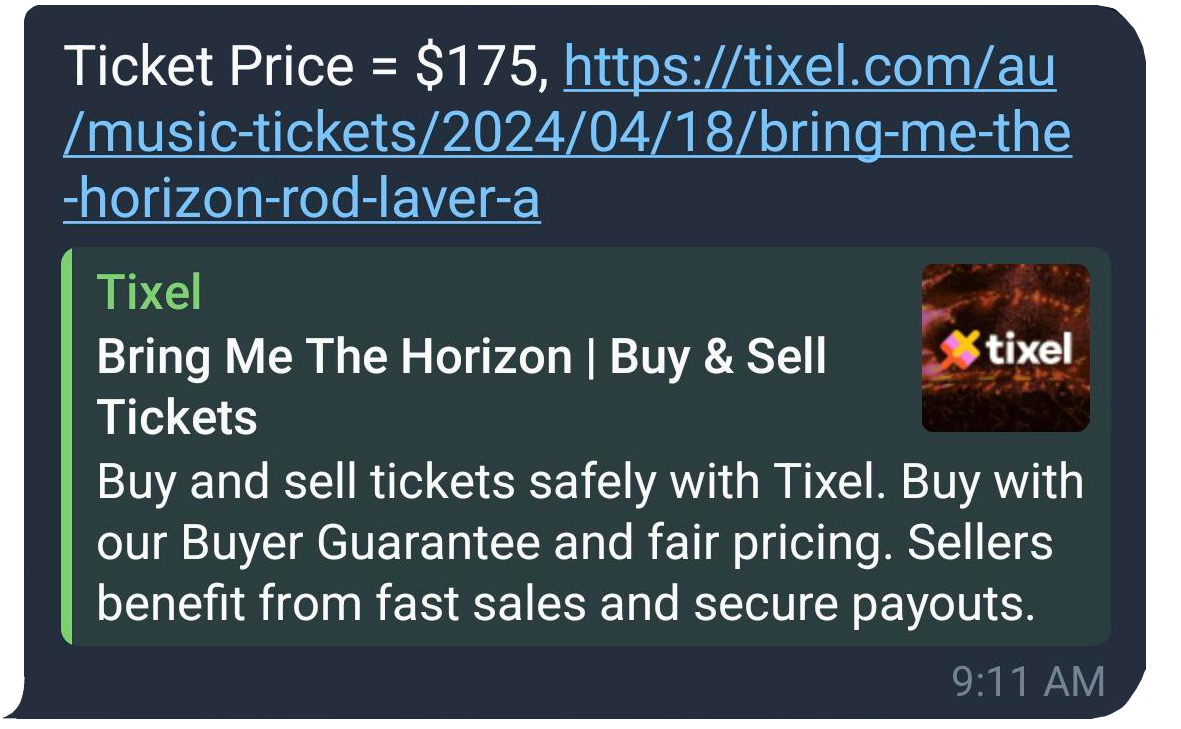
Earlier this year when I wanted to attend Bring Me The Horizon’s Rod Laver Arena event (a show where almost 1000 fans were on the waitlist) I found that Tixel’s email notification system was delayed for as long as 15 minutes after a ticket was posted online.
Compounding the issue is Tixel’s own processes:
We send out alerts in randomised order every few seconds, until that ticket is purchased. For popular events where tickets are bought quickly, there is not enough time to send out a notification out to everyone.
Hence the purpose of this blog-post, let’s come up with a way to circumvent their system to be notified instantly when a ticket becomes available.
Requirements
| Requirement | Comment |
|---|---|
| python | We will use python as our codebase |
| IDE of choice | I use PyCharm |
| Telegram Android/iOS Application | This is the method we will use to notify us a ticket is available |
Install the following python packages via your IDE or pip install:
1
2
pip install playwright
pip install requests
Getting Started
We will be utilising Playwright for Python as our way to scrape the tixel website.
- Install playwright via pip install or your IDE’s package manager
- Create a new python file and name it (e.g.
tixel_scraper.py) - If this is your first time installing playwright you may need to install the necessary browser binaries. Open your console/terminal and run the following command:
1
python -m playwright install
You may need to use
python3instead ofpython. Alternatively you may need to specify your python installation path if it is not able to find playwright.
1
"C:\path\to\python.exe" -m playwright install
If this is still not working perhaps you are using a virtual environment. If so try the following in your console/terminal:
1
2
.\venv\Scripts\activate
python -m playwright install
Writing Our Code
- Let’s import the modules we’re going to use
1
2
3
4
from playwright.sync_api import Playwright, sync_playwright, TimeoutError
import re
import requests
import time
Now let’s write a function to open the website and call that function
1
2
3
4
5
6
7
8
9
10
11
12
13
14
15
def run(playwright: Playwright) -> None:
   browser = playwright.chromium.launch(headless=False)
   context = browser.new_context()
   page = context.new_page()

   try:
      url = "https://tixel.com/au/music-tickets/2024/09/22/parkway-drive-john-cain-arena-me"
      page.goto(url)
      page.wait_for_load_state("load")
   finally:
     context.close()
     browser.close()

with sync_playwright() as playwright:
   run(playwright)
Note we are running the chromium browser with
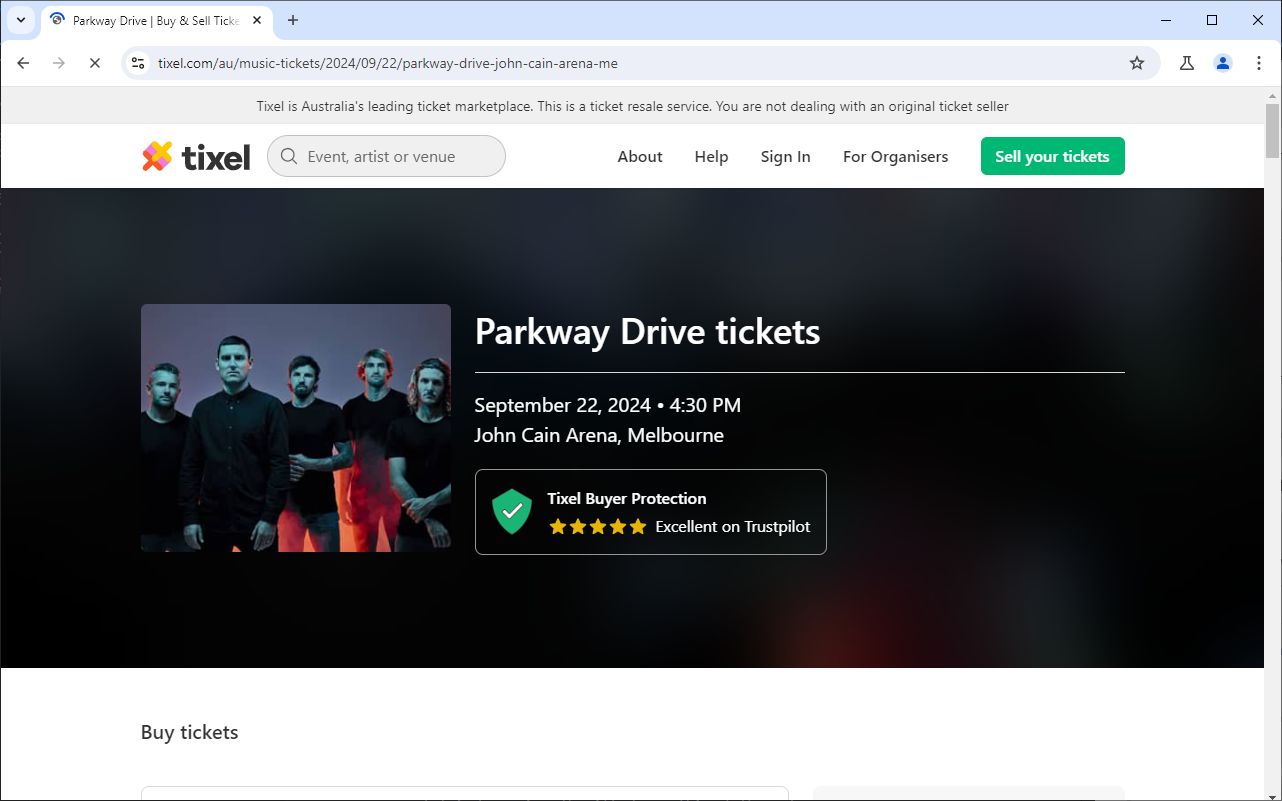
headless=Falsefor now so we can see what is happening. We will change this at the end.When we run the code we should see the page loading in the chromium browser and then close once it’s fully loaded
Now let’s extract some data from the website! At the time of writing tixel will group similar tickets into individual cards based on their type (e.g. seated vs. general admission):
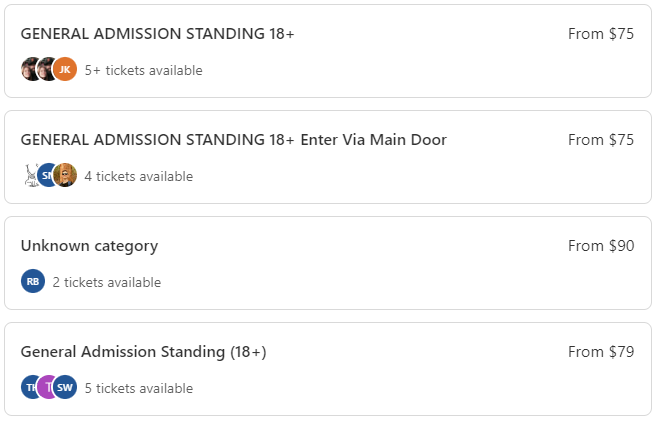
So my approach is simple, usually I like to be in the General Admission area and these are quite often the sought after tickets, so we will specify that we only want to extract data from the General Admission cards. Let’s add the following after the
page.wait_for_load_state("load")line of our run function:1 2 3 4 5 6 7
try: button = page.wait_for_selector('button:has-text("General Admission")', timeout=10000) ticket_details = button.inner_text() print(ticket_details) except TimeoutError: print("No General Admission Tickets for sale. Retrying in 20 seconds.") return
- After we execute the code we should get a print out in our console (assuming there is atleast one ticket available for the show in this category) which displays the following:
1
2
3
4
5
6
7
GENERAL ADMISSION STANDING 18+

10+ tickets available

From $75

Process finished with exit code 0
- Next we will use regular expression we can extract the price of the ticket. Add the following below the
print(ticket_details)line of our run function:1 2
cost = int(''.join(re.findall(r'(?<=\$)[0-9,]+', ticket_details))) print(cost)
If a ticket is availabe I will get the price of the ticket printed out in the console:
1
75
- Lets write our message output in a nice format with a link to the event so when we are notified we can quickly jump in and purchase the ticket. This can sit outside our second try block:
1
output = "Ticket Price = ${}, {}".format(cost, url)
- Here is the full code so far:
1
2
3
4
5
6
7
8
9
10
11
12
13
14
15
16
17
18
19
20
21
22
23
24
25
26
27
28
29
30
31
32
33
from playwright.sync_api import Playwright, sync_playwright, TimeoutError
import re
import requests
import time


def run(playwright: Playwright) -> None:
   browser = playwright.chromium.launch(headless=False)
   context = browser.new_context()
   page = context.new_page()

   try:
      url = "https://tixel.com/au/music-tickets/2024/09/22/parkway-drive-john-cain-arena-me"
      page.goto(url)
      page.wait_for_load_state("load")
      try:
            button = page.wait_for_selector('button:has-text("General Admission")', timeout=10000)
            ticket_details = button.inner_text()
            print(ticket_details)
            cost = int(''.join(re.findall(r'(?<=\$)[0-9,]+', ticket_details)))
            print(cost)
      except TimeoutError:
            print("No General Admission Tickets for sale. Retrying in 30 seconds.")
            return
      output = "Ticket Price = ${}, {}".format(cost, url)

   finally:
      context.close()
      browser.close()


with sync_playwright() as playwright:
   run(playwright)
Notification Setup
Before we add our code to send the notification we need to do some setup with our Telegram app. If you haven’t already, download the Telegram app and sign up for an account.
Contact the BotFather bot and send the command
/startfollowed by/newbot. Follow the instructions sent by BotFather to setup the bot, name it as you see fit (e.g. TixelNotificationBot).Once your bot is created you will receive an API key, copy this value and store it somewhere for later.
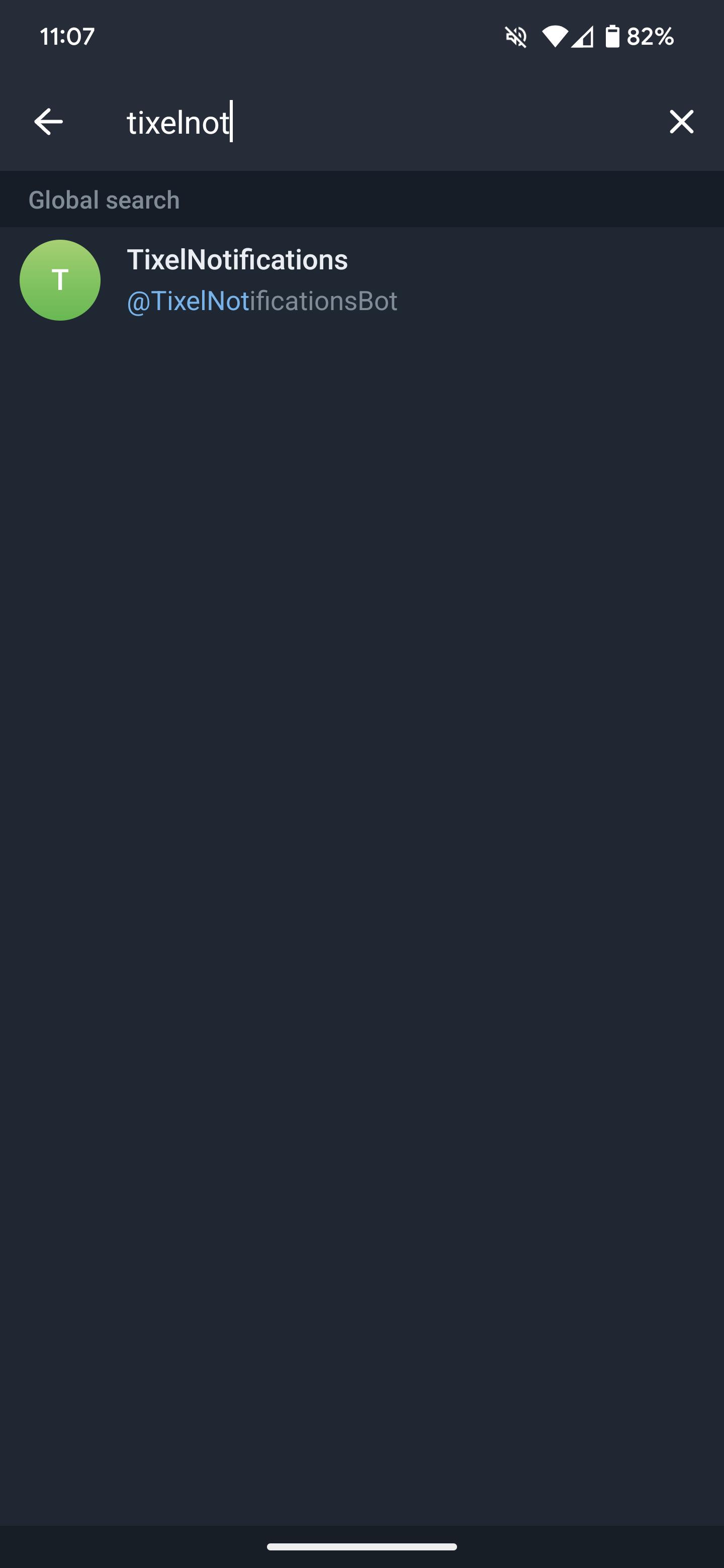
Start a new message and locate your bot via its name:
Send your bot the
/startcommand.Lastly we need to find our own ID on Telegram, to do this you can message the IDBot and send
/startto receive your ID value. We will use this in the next section.
Adding the Notification Function to python
- Since we can now extract the data for the ticket we want, let’s implement the way to notify us of the tickets availability. Create two new variables before our run function:
1
2
token_file_path = 'keys/telegram_token.txt'
chat_id_file_path = 'keys/telegram_chat_id.txt'
Create a folder in your
tixel_scraper.pydirectory calledkeysand create two text files namedtelegram_token.txtandtelegram_chat_id.txt.Open these files and save your bot API key from earlier in the
telegram_token.txtfile and save your Telegram ID in thetelegram_chat_id.txtfile.- Add the following code so we can read the text files, this needs to go after the variable declaration but before the run function:
1
2
3
4
5
with open(token_file_path, 'r') as file:
   token = file.read().strip()

with open(chat_id_file_path, 'r') as file:
   chat_id = file.read().strip()
- Let’s add the following if statement to our run function just below our
output = "Ticket Price = ${}, {}".format(cost, url)line. This firsts checks the cost of the ticket matches the threshold. If true it will then send a notification to our Telegram bot who will then in turn notify us:1 2 3 4 5 6 7 8
if cost <= 75: print("Notification Sent") message = output url = f"https://api.telegram.org/bot{token}/sendMessage?chat_id={chat_id}&text={message}" print(requests.get(url).json()) # this sends the message time.sleep(300) # Pause for 5 minutes to reduce spam (300 seconds) else: print("No ticket found for the minimum price, trying again in 20 seconds....")
I like to set a cost threshold particularly if I am trying to get a cheap ticket to an event that is not selling well. If your event is very popular and the tickets are being purchased immediately after listing it may be worth setting the price threshold to a large number (e.g. 500) so that you are notified of every ticket on sale.
- We want this to run repeatedly until we stop the script so let’s write a new function to replace our existing
sync_playwrightcall. And make sure we call the function at script start.1 2 3 4 5 6 7
def run_every_20_seconds() -> None: while True: with sync_playwright() as playwright: run(playwright) time.sleep(20) run_every_20_seconds()
- Lastly make sure you set
headless=Truein our browser variable so that the Chromium browser does not render on the screen.
Finishing Up
And that’s all the coding done, run the script now and you should now be getting notifications if your ticket type and price are available. Note for testing purposes you may want to alter the ticket type and/or cost to ensure you are receiving notifications prior to running this script for the correct parameters.
Here is the finished code from this post:
1
2
3
4
5
6
7
8
9
10
11
12
13
14
15
16
17
18
19
20
21
22
23
24
25
26
27
28
29
30
31
32
33
34
35
36
37
38
39
40
41
42
43
44
45
46
47
48
49
50
51
52
53
54
from playwright.sync_api import Playwright, sync_playwright, TimeoutError
import re
import requests
import time

token_file_path = 'keys/telegram_token.txt'
chat_id_file_path = 'keys/telegram_chat_id.txt'

with open(token_file_path, 'r') as file:
    token = file.read().strip()

with open(chat_id_file_path, 'r') as file:
    chat_id = file.read().strip()


def run(playwright: Playwright) -> None:
    browser = playwright.chromium.launch(headless=True)
    context = browser.new_context()
    page = context.new_page()

    try:
        url = "https://tixel.com/au/music-tickets/2024/09/22/parkway-drive-john-cain-arena-me"
        page.goto(url)
        page.wait_for_load_state("load")
        try:
            button = page.wait_for_selector('button:has-text("General Admission")', timeout=10000)
            ticket_details = button.inner_text()
            cost = int(''.join(re.findall(r'(?<=\$)[0-9,]+', ticket_details)))
        except TimeoutError:
            print("No General Admission Tickets for sale. Retrying in 20 seconds.")
            return
        output = "Ticket Price = ${}, {}".format(cost, url)
        if cost <= 75:
            print("Notification Sent")
            print(output)
            message = output
            url = f"https://api.telegram.org/bot{token}/sendMessage?chat_id={chat_id}&text={message}"
            print(requests.get(url).json())  # this sends the message
            time.sleep(300)  # Pause for 5 minutes (300 seconds)
        else:
            print("No ticket found for the minimum price, trying again in 20 seconds....")
    finally:
        context.close()
        browser.close()


def run_every_20_seconds() -> None:
    while True:
        with sync_playwright() as playwright:
            run(playwright)
        time.sleep(20)


run_every_20_seconds()
How could this be improved?
Tixel actually has an auto purchase option for some events, if this is active for your event I recommend utilising it as well as this script.
That said for events where auto purchase is disabled we could set up an auto purchase function by having us login to Tixel with a saved credit card and purchase the ticket once it’s available. I am happy to do a manual purchase myself but if you really wanted that ticket you could have a go at implementing this. I also found a github repo by johannes117 which incorporates SMS and email notifications although I have not tried it myself.
Another improvement would be to search all the available cards, currently we are only looking at the first button which matches the name:
1
button = page.wait_for_selector('button:has-text("General Admission")', timeout=10000)
Ideally we could look at all the available buttons and do some regex matching which meet our parameters. I was a bit too lazy to implement this as my crude method seemed to work okay.
Thanks for reading.
Let me know your thoughts in the comments below!